Rank Math SEO…
I switched to Rank Math a while back, and what’s kept me on it isn’t any single standout feature — it’s that it does its job extremely well. That is why it is part of my core suite of plugins whenever I start a new site. The setup choices it nudges you toward during onboarding are sensible defaults for a WordPress site, and the parts I actually use day to day stay out of the way until I need them.
As I’ve written this, I’ve had Rank Math’s own content analysis running alongside it, checking readability, keyword focus, and structure as I go. That felt like the right way to approach a mini-review that’s meant to be an evaluation of actual use, not a rehashed feature list you could get from the plugin’s own marketing page.
The modules I actually use…

Rank Math has a lot of optional modules including ones for specific plugins like WooCommerce and bbPress. In practice, I generally only use the following, each conveniently activated via the setup wizard, so it is just fine tuning once that is done:
- 404 Monitor — logs broken URLs hitting the site, so I can see what needs a redirect rather than guessing
- Redirections — covered in detail below
- Schema — structured data markup, switched on at the start and left largely on its sensible defaults
- Sitemap — all the settings to structure your sitemap exactly as you want it
In the case of BMCS, I don’t use the Local SEO or Analytics modules. Local SEO doesn’t map cleanly onto how BMCS operates, and I haven’t found a need for a second analytics dashboard sitting alongside the tools I already use for that. It’s tempting to think you should switch everything on, but just because they are there doesn’t mean you have to use every feature (something I was guilty of in the early years on many plugins).
The setup wizard — keeping it simple…
On plugin activation you are usually taken to the setup Wizard. This walks you through the basics — site information, sitemap generation, seo tweaks — nothing unusual there if you’ve set up an SEO plugin before. Then the choices worth mentioning are the ones made in the advanced section of the wizard, since these are the ones that actually shape how the site behaves:
- Schema and Redirections switched on — both are optional modules in Rank Math, and I turn them on as standard rather than leaving them for later. Schema markup and a working redirect manager are things I’d rather have available from day one than retrofit.

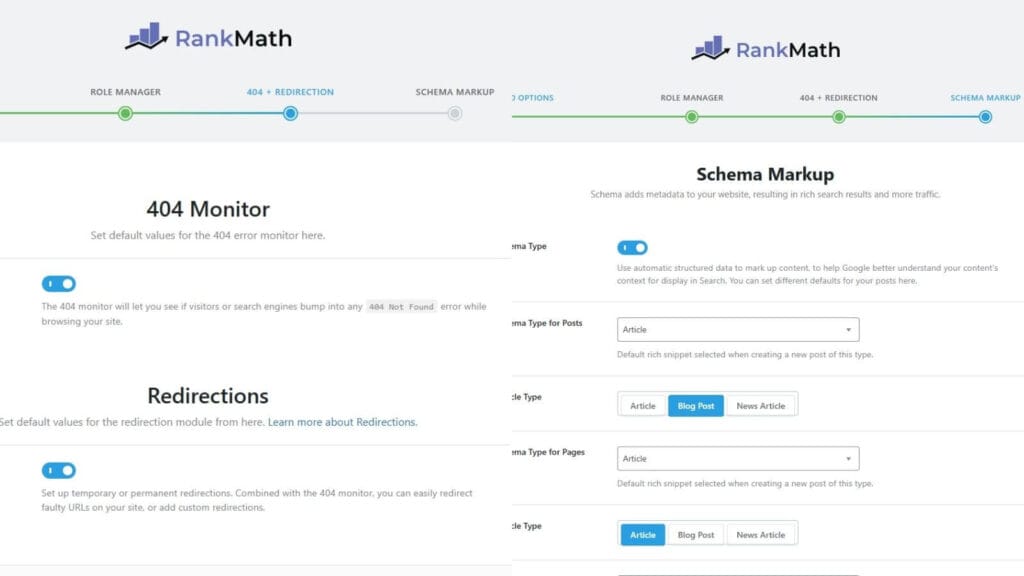
Once you are done with the wizard, you can move to the navigation menu to fine tune the General Settings and Titles/Meta to suit your requirement and that is pretty much job done. There are some of those default settings I do recommend you always update:
- Category removed from the URL structure — cleaner permalinks, and one less unnecessary URL segment for every post.
- Attachment pages redirected to their parent post — WordPress creates a standalone page for every media attachment by default, which serves no real purpose and just adds thin, low-value pages for search engines to crawl. Redirecting these to the post they belong to tidies that up automatically.
- Indexing restricted to posts, pages, and categories only — tags, media attachments, and other archive types stay out of the index. Fewer thin or duplicate pages competing for crawl budget, and a cleaner picture of what actually matters on the site.
One of the other upsides is that the global settings can be overridden at a page/post level if your have a specific reason to do so. For example, you may add an article that serves purely as an internal reference point on the site. In that instance you can manually set the post to no index.
There are a couple of the plugin features I want to cover in a little more detail:
- Redirections
- On-Page SEO
Redirections in practice…
Redirects matter more than you may give credit. Leave a moved or deleted URL unmanaged and visitors hit a 404 — a dead end that prompt most to look elsewhere. Handled properly, a redirect passes an old page’s link equity across to its replacement, so the ranking power it built up isn’t simply lost the moment the URL changes. It also keeps things tidy for search engines themselves: fewer broken links for crawlers to trip over means your site gets indexed more efficiently, and your organic traffic doesn’t take a hit it never needed to take.
Here’s a genuine case for why this tool is so useful. The post Introduction to SiteGround Hosting was originally published on BMCS in 2022. I have updated & renamed that post (& it’s permalink) in the rebuild to SiteGround: A Beginner’s Dream — Before the Seven-Year Itch. A quick addition to the list with the old URL as the source, the live article as the destination, redirect type set to permanent and it continues as a live article. Any old, stray url links in the search engines or displayed elsewhere will automatically redirect to the revised article.
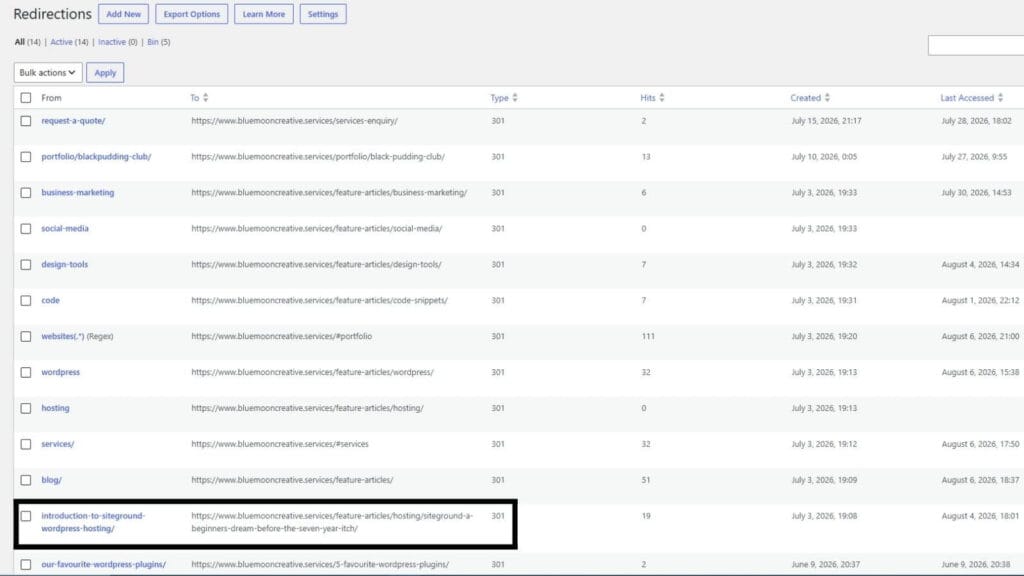
As you can also see from the image, the old category and portfolio links have also been added — so all being well the old links will redirect to the appropriate page(s) on the new site. It’s a small, unglamorous piece of SEO housekeeping, but it’s exactly the kind of thing that’s easy to let slip if you don’t have a proper redirect manager sitting in your dashboard. The 404 Monitor module pairs well with this too — it’s often how I notice a redirect is needed in the first place.
On-Page SEO — Making sense of the score, and where I stop paying attention to it
The content analysis sidebar is one of the main reasons I use this plugin. It checks things like keyword placement, readability, meta description length, and internal/external linking as you write — which is genuinely useful as a working checklist, especially on longer pieces of content. It means you can manage most of the on-page SEO elements whilst you are drafting a post. But I don’t chase a perfect 100 score for its own sake.
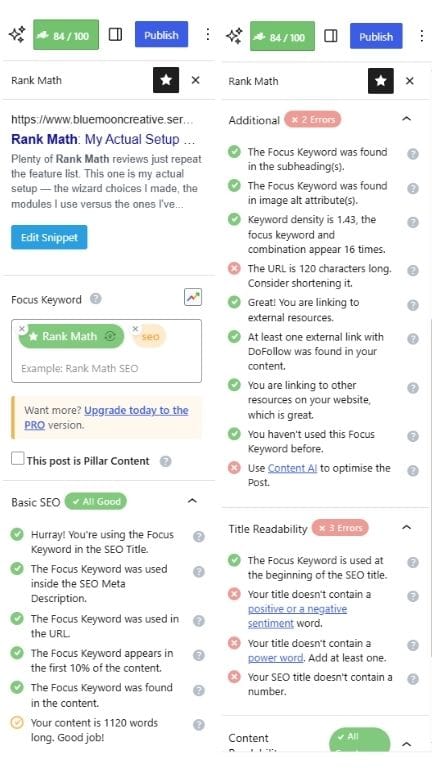
Some of the suggestions help an article read more naturally; others would mean forcing a keyword into a sentence that reads worse as a result. I use the score as a prompt to check my work, not as a target to hit at the expense of how the article actually reads.
Just to make the point, prior to taking the screenshots and finishing this article, the word count was just below 1000 and the score was in the late 70’s. Once I’d hit the 1000 word mark, the score jumped to its current position – my point being, would a few extra words to pad out an essentially complete article really make a significant difference to whole piece – well, no. Do I want to add a power word or number to my title – well, no it is not necessary. It is a useful signal, not a challenge to reach 100 for every article (Actually, in Rank Maths own documentation they tell you a score of 100% is only possible for articles over 2500 words).
I guess I should also point out here, a high score does not guarantee a high ranking. There are so many other factors in play. What it does provide is assurance that you have the base on-page SEO in place for an article if you are chasing the ranking pinnacle.
In closing, Rank Math provides all the necessary on-site SEO tools I need for the moment. I’ve considered linking the analytics, Content AI and testing out the PRO tools and I will consider it again, but that’s for another day when I just feel like experimenting…